The Complete Guide to Game Trailers and Screenshots That Sell
Your trailer is probably too long, too slow, and starts with a logo nobody cares about.
TL;DR: Your trailer has 5 seconds to hook before viewers scroll away. Start with your most compelling gameplay (no logos), keep it under 90 seconds, sync cuts to music beats, and end with a clear call to action. Screenshots should show core gameplay first and include 6-8 varied images that answer "what is this game?"
Key Takeaways
- The first 5 seconds determine everything: Steam autoplays your trailer and you have moments before viewers scroll past
- Structure: Hook (0-5s), Core Loop (5-25s), Escalation (25-45s), Title/Release Info (final 5-10s)
- Target 60-90 seconds for gameplay trailers and 30-45 seconds for teasers since anything over 2 minutes loses most viewers
- Screenshot ordering matters: first screenshot should show core gameplay, then different environments, unique mechanics, dramatic moments, and UI/systems
- Your press kit needs downloadable MP4 trailers, b-roll footage, and both UI-on and UI-off screenshots It's the unskippable cutscene of your marketing campaign. Your screenshots probably look like random frame grabs from a dev build. Both of these things are fixable, and fixing them will do more for your wishlist numbers than any tweet thread or Discord growth hack.
Trailers and screenshots are the most important marketing assets you'll create for your game. Full stop. Steam autoplays your first trailer the moment someone lands on your store page. Your first screenshot appears in search results, the Discovery Queue, and recommendation carousels. These visual assets do the selling while you sleep, while you're heads-down fixing bugs, while you're arguing on Reddit about whether your genre tag is right.
Martin Robinson, former Eurogamer editor-in-chief, described the ideal press kit as "a folder of nine to 12 screenshots, a trailer, a small amount of b-roll, and some good high-quality artwork." That's it. Those assets end up everywhere: your Steam page, your press kit, every social post, every showcase submission. Get them right once, and they work for you across every channel.
This guide covers how to make trailers that hook in five seconds, screenshots that sell your game without a single word, and press kit assets that journalists actually want to use.
Table of Contents
- The 5-Second Rule: Why Your Opening Kills Your Trailer
- Trailer Structure That Actually Works
- How Long Should Your Trailer Be?
- Music and Audio Do Half the Work
- Text Overlays vs. Pure Gameplay
- Announce Trailer vs. Launch Trailer
- Tools for Making Trailers on a Budget
- When to Hire a Trailer Editor
- Screenshots: Your Silent Sales Team
- Screenshot Composition and Ordering
- UI On vs. UI Off
- GIF Screenshots: When They Help, When They Hurt
- The Screenshot Test
- Screenshot Specs for Steam
- Press Kit Assets: What Journalists Actually Need
- The Trailer and Screenshot Checklist
The 5-Second Rule: Why Your Opening Kills Your Trailer
Steam autoplays your first trailer on your store page. No click required. The video starts rolling the second someone sees your page. You have maybe five seconds before they scroll down, click away, or go back to browsing.
Valve's own Steamworks documentation puts it bluntly: "You may have less than 10 seconds to make an impression." That's Valve being generous. In reality, it's closer to five.
Watch the Balatro trailer. It opens with a hand of poker hitting the table and cards erupting into a cascade of multipliers and visual chaos. Three seconds in, you already know this is a card game that does something weird with poker. You're curious. You keep watching.
Now think about the last ten indie game trailers you saw. How many started with a developer logo fading in from black? A publisher logo after that? Maybe a slow camera pan across a generic environment? By the time actual gameplay appeared, you were already gone.
Derek Lieu, a professional game trailer editor who's worked on titles like Outer Wilds and Sable, calls this the single most common indie game trailer mistake: burying your hook. His advice is simple. Start with the most exciting, surprising, or visually distinct moment from your game. The logo can come later.
The Hollow Knight: Silksong reveal trailer opens with Hornet slicing through enemies in a gorgeous new environment. No title card. No "from Team Cherry." Just movement, combat, and a silk thread stretching across the screen. By the time the title hits, the audience is already screaming.
That's the standard. Not the exception.
What a Good First Five Seconds Looks Like
Your opening should answer one question: "What is this, and why should I care?"
For action games, that means your most fluid, visually striking combat sequence. For puzzle games, show a mind-bending solution that makes viewers think "wait, how?" For atmospheric games, put your most arresting environment front and center with movement that draws the eye.
What it should never be:
- A studio logo
- A publisher logo
- A black screen with white text
- A slow fade from black
- Narration explaining the lore
- An establishing shot that takes eight seconds to arrive anywhere
Cut those. All of them. Move your logo to the end card or skip it entirely in the trailer.
Trailer Structure That Actually Works
Derek Lieu outlines a template he calls "Tell, Show, Repeat." You present a concept with a title card, then immediately show gameplay that demonstrates it. Then you move to the next concept. It's dead simple and works for almost any genre.
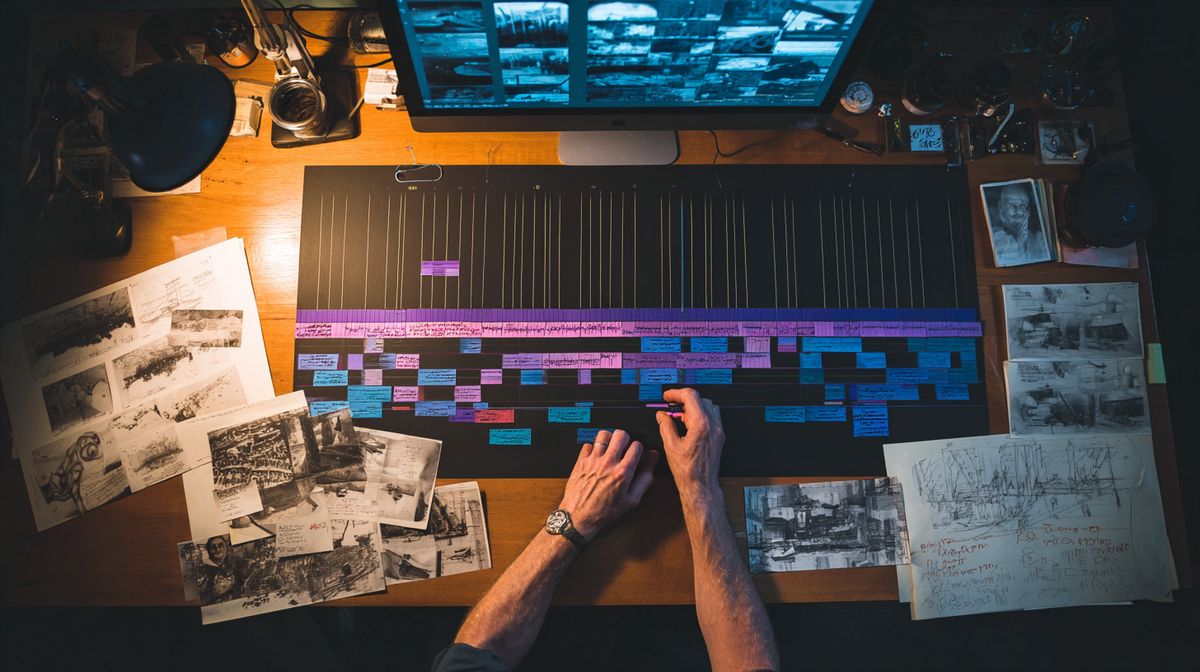
But the broader structure that most successful indie trailers follow is this:
Hook (0-5 seconds). Your most visually compelling gameplay moment. Something that makes a scrolling viewer stop and actually watch. No text, no logo, no setup.
Core Loop (5-25 seconds). Show what the player actually does. This is where Valve's recommendation kicks in hardest. Steamworks docs explicitly say: "We highly recommend that the first trailer you list on your store page is primarily gameplay, showing the player what they will be doing in the game." Show the core mechanic. Show it clearly. Show it from the perspective the player will actually see.
Escalation (25-45 seconds). Build from the core loop into variety. Different environments. New mechanics. Bigger enemies. Harder puzzles. This section answers "OK, I get what it is, but does it stay interesting?" Dead Cells does this brilliantly, starting with basic combat and platforming, then rapidly escalating through biomes, boss fights, and weapon variety. The pacing tightens. Cuts get faster.
Title and Release Info (final 5-10 seconds). Your game's logo, release date or release window, platform icons, and a wishlist call to action. Lee Guille, PR director at Rockfish Games, emphasizes that "the final image should easily communicate information such as the release date, platforms, where to wishlist, and logos." This is the only place where text-heavy content belongs.
That's it. Hook, core, escalation, close. The Hades trailer follows this structure almost beat for beat. So does Celeste's. So does every trailer Derek Lieu breaks down on his YouTube channel.
The "Show the Dream, Not the Job" Principle
Derek Lieu has a phrase that should be taped above every trailer editor's monitor: "Show the dream, not the job."
Your trailer shouldn't show every system, every menu, every crafting screen. It should show the version of your game that lives in a player's imagination after they've been told the concept. The fantasy. The moments they'll remember. Nobody's fantasy involves reading a skill tree.
Stardew Valley's trailer doesn't show the inventory management. It shows the farm coming alive, seasons changing, and relationships growing. The job of playing Stardew involves a lot of menu interaction. The dream is a cozy life on a farm. The trailer sells the dream.
How Long Should Your Trailer Be?
Short. Shorter than you think.
The ideal length for a Steam store page trailer is 60 to 90 seconds. That's the window where you can show enough to communicate your game without losing viewers. Go shorter if your game's hook is immediately obvious. A 30-second trailer for a game with a crystal-clear concept is better than a 2-minute trailer that meanders.
Go over 90 seconds and you start bleeding viewers. Go over two minutes and you're making a video essay, not a trailer. Nobody finishes a three-minute indie game trailer. Nobody.
Valve's Steamworks documentation notes that Steam generates "microtrailers," which are six-second looping clips automatically created from your first trailer. These appear in category hubs, sale pages, and the Steam homepage during seasonal events. If your trailer is three minutes long, those auto-generated six seconds might capture a studio logo and a fade-in. That's a wasted opportunity.
Balatro's announcement trailer is 52 seconds. Celeste's launch trailer is 68 seconds. The Hollow Knight: Silksong reveal is 2 minutes and 38 seconds, but that's Team Cherry revealing one of the most anticipated games in indie history to a live audience at E3. You're not Team Cherry. Keep it under 90.
Length by Trailer Type
Different trailers serve different purposes and can justify different lengths:
Teaser trailer (15-30 seconds). Just enough to establish mood, genre, and your game's visual identity. You're announcing that this thing exists.
Gameplay trailer (45-90 seconds). The workhorse. This goes on your Steam page. This is what Valve recommends as your first listed trailer.
Launch trailer (60-90 seconds). Similar to the gameplay trailer but with more polish, final assets, and a concrete release date.
Accolades trailer (30-45 seconds). Post-launch. Show press quotes, review scores, and award nominations over your best gameplay footage. Lee Guille notes that "adding post-release assets such as an accolades trailer is easy to miss" but it's a simple way to refresh your store page after launch.
Music and Audio Do Half the Work
Mute your trailer. Watch it silent. If it's boring, your visuals need work. Now watch it again with audio. If it doesn't feel 50% more exciting, your music choice needs work.
Music sets pacing. It tells the viewer when to feel tension, when to feel excitement, when to lean in. A perfectly cut trailer with flat, generic background music will feel amateurish. A decently cut trailer with a perfectly synced soundtrack will feel professional.
Here's what matters:
Sync your cuts to the beat. Every major cut should land on a musical beat. Not approximately. Precisely. This is the single easiest way to make a trailer feel polished. Developers who hire professional editors consistently point to beat-synced editing as the primary thing that made their trailer feel "professional" versus "DIY." Watch the Dead Cells trailer. Every biome transition, every weapon switch, every boss reveal lands on a drum hit or bass drop. That's not accidental.
Choose music that matches your game's tone. This sounds obvious, but the number of cozy farming games with epic orchestral trailer music is staggering. If your game is contemplative, your music should be contemplative. If your game is frantic, your music should be frantic. Celeste's trailer uses the actual game soundtrack, and it's perfect because the music was already designed to match the pacing of the gameplay.
Don't use copyrighted music. This will get your trailer muted or pulled on YouTube. Use royalty-free music from services like Epidemic Sound, Artlist, or Musicbed. Or commission a track. If your game already has an original soundtrack, use that. It's the most authentic option and doubles as a preview of the audio experience.
Consider that many viewers watch without sound. Valve's own documentation says: "The customer may be watching your trailer without any audio. You will want to think about how long it takes for the customer to learn about your product, and if they can learn about it without audio." Your trailer needs to work silently. Text overlays and strong visual storytelling ensure it does.
Text Overlays vs. Pure Gameplay
Two schools of thought. Both can work. The wrong choice for your game will hurt you.
Pure gameplay works when your game is visually self-explanatory. If someone can look at five seconds of footage and immediately understand the genre, the mechanic, and the appeal, you don't need text. Hollow Knight doesn't need a title card saying "Explore a vast underground kingdom." The footage says it.
Text overlays work when your game's hook isn't immediately visible. Strategy games, management sims, RPGs with deep systems, anything where the "why this is interesting" lives beneath the surface. Text bridges the gap. Derek Lieu calls this the "Tell, Show, Repeat" approach: a title card states a concept ("Build your colony"), then gameplay demonstrates it, then the next title card introduces the next concept ("Survive the winter").
Rules for text overlays:
- Keep them short. Five words max per card. "100+ weapons" beats "Discover an arsenal of over one hundred unique weapons with special abilities."
- Use them to add context the footage can't show. "Coming 2026" is useful. "A harrowing tale of loss and redemption" is marketing copy that belongs on your Steam description, not your trailer.
- Match the font and style to your game's visual identity. Comic Sans over a horror game is, admittedly, a choice.
- Never let text stay on screen for more than 3 seconds. If someone has to pause to read your trailer, you've failed.
The Slay the Spire trailer uses text overlays sparingly and effectively, naming each character class while showing their unique gameplay. It gives structure to what would otherwise be a confusing montage of different card mechanics.
Announce Trailer vs. Launch Trailer
These serve completely different purposes. Treating them as the same trailer is a common and costly mistake.
The Announce Trailer
Goal: make people aware your game exists and get them to wishlist.
You're selling the concept, the vibe, the fantasy. You probably don't have final assets yet. That's fine. Show enough to communicate what the game is and why it's different. Tease. Leave questions unanswered. Make people want to follow your development.
The announce trailer can be shorter (30-60 seconds), more cinematic, and less focused on showing every system. It's a first impression, not an exhaustive feature tour.
What it must include: enough actual gameplay to signal that this is a real game in active development, your game's title, and a "Wishlist Now on Steam" end card.
What it should skip: release dates you're not sure about, feature lists that might change, and any footage from systems that aren't close to final.
The Launch Trailer
Goal: convert existing wishlisters and new visitors into purchases.
This is all business. Show the game as it actually plays. Show variety. Show polish. Show the final product. People who see your launch trailer are making a buying decision right now. Give them the information they need.
The launch trailer should be your best 60-90 seconds of gameplay, cut with precision, ending with a clear release date (or "Available Now"), platform icons, and a price if appropriate.
Replace your announce trailer with the launch trailer as the first video on your Steam page when you ship. Or keep both and reorder them, putting the launch trailer first. Valve lets you drag and drop trailer order in the Steamworks backend, and the first two valid trailers display before any screenshots.
Tools for Making Trailers on a Budget
You don't need a $2,000 video editing setup. Here's what actually works for solo devs and small teams:
Capture: OBS Studio (free). Set it to record at 1080p, 60fps, with a high bitrate. Steam accepts up to 1920x1080 at 30 or 60fps. Use H.264 encoding with AAC audio. Capture clean gameplay with the debug UI hidden, placeholder art swapped out, and your game running smoothly. Record more footage than you think you need. Three to five times more.
Editing: DaVinci Resolve (free version). It's a professional-grade video editor that costs nothing. The free tier handles everything you need: cutting, transitions, text overlays, color grading, and audio mixing. The learning curve is real, but there are hundreds of YouTube tutorials specifically for game trailer editing in Resolve.
Alternatives include Kdenlive (free, open source, Linux-friendly), Shotcut (free), or if you already own it, Adobe Premiere Pro. Don't buy Premiere just for trailers.
Audio: For royalty-free music, Epidemic Sound and Artlist run around $10-15/month. That's cheap insurance against a copyright strike. Free options include Incompetech (Kevin MacLeod's library, used in approximately 40% of all YouTube videos at this point) and Freesound.org for sound effects.
Export settings for Steam: H.264 video, AAC stereo audio, 1920x1080 resolution, 30 or 60fps, and a bitrate of at least 5,000 Kbps (higher is better). Export as .mp4. Valve transcodes everything, but cleaner source files produce better results. Audio should be 44KHz or 48KHz sample rate. Avoid surround sound since Steam filters everything down to stereo.
When to Hire a Trailer Editor
The honest assessment: if your trailer isn't getting the reaction you want, hiring a professional is probably the highest-ROI marketing spend available to you.
A good trailer editor costs $1,000-5,000 depending on the length, complexity, and the editor's experience. That sounds like a lot until you consider that your trailer will be seen by potentially hundreds of thousands of people on your Steam page. If a professional trailer converts even 1% better than your DIY version, it pays for itself many times over.
Hire a professional when:
- Your game looks good but your trailer doesn't capture that. This is the most common case. The game is polished, the art is strong, but the trailer feels flat because the editing, pacing, or music selection isn't right.
- You've never edited video before. Learning DaVinci Resolve while also trying to ship a game is a lot. Time has value.
- You're approaching a major visibility moment: Steam Next Fest, a showcase submission, a publisher pitch. First impressions are irreversible. A weak trailer at a showcase gets one chance and then it's gone.
- You've been staring at your own game for two years and can't tell what's interesting about it anymore. Fresh eyes see what you can't.
DIY when:
- Your budget is genuinely zero.
- You enjoy video editing and are willing to invest serious time learning it.
- Your game is early enough that you'll need to remake the trailer multiple times anyway.
- You're making a simple teaser (under 30 seconds) and your game's visuals do most of the work.
Derek Lieu offers consultations where he reviews your trailer and gives specific feedback. That's a middle ground between fully DIY and hiring an editor: you do the work, but a professional tells you what to fix.
Screenshots: Your Silent Sales Team
If trailers are your 60-second elevator pitch, screenshots are the brochure someone flips through while waiting. They work in silence. No audio, no motion, no pacing tricks. Just a single frame that has to tell a complete story about your game.

Your first screenshot might be the most important static marketing asset you have. It appears in Steam search results, the Discovery Queue, recommendation widgets, and anywhere your game gets surfaced algorithmically. Many players see this screenshot before they ever see your trailer.
Valve's Steamworks rules are explicit: "Screenshots should exclusively show the gameplay of your game. This means avoiding using concept art, pre-rendered cinematic stills, or images showing awards, marketing copy, written descriptions." No cheating with pretty concept art. Show the real thing.